Navigating Roblox chat settings is crucial for millions of US gamers who seek a safe enjoyable and controlled social experience while balancing their busy lives. This comprehensive guide delves into how to effectively manage your Roblox chat settings allowing you to customize privacy filter levels and communication preferences. For gamers averaging 10 hours a week on platforms like Roblox understanding these options ensures valuable playtime is spent relaxing and connecting not dealing with unwanted interactions. Whether you are a parent looking to safeguard younger players or an adult gamer seeking a refined social environment mastering these settings is key to optimizing your Roblox adventure. Discover tips tricks and solutions to common chat challenges ensuring every communication enhances your gaming journey and protects your privacy.
How do I find and adjust my Roblox chat settings for better privacy?
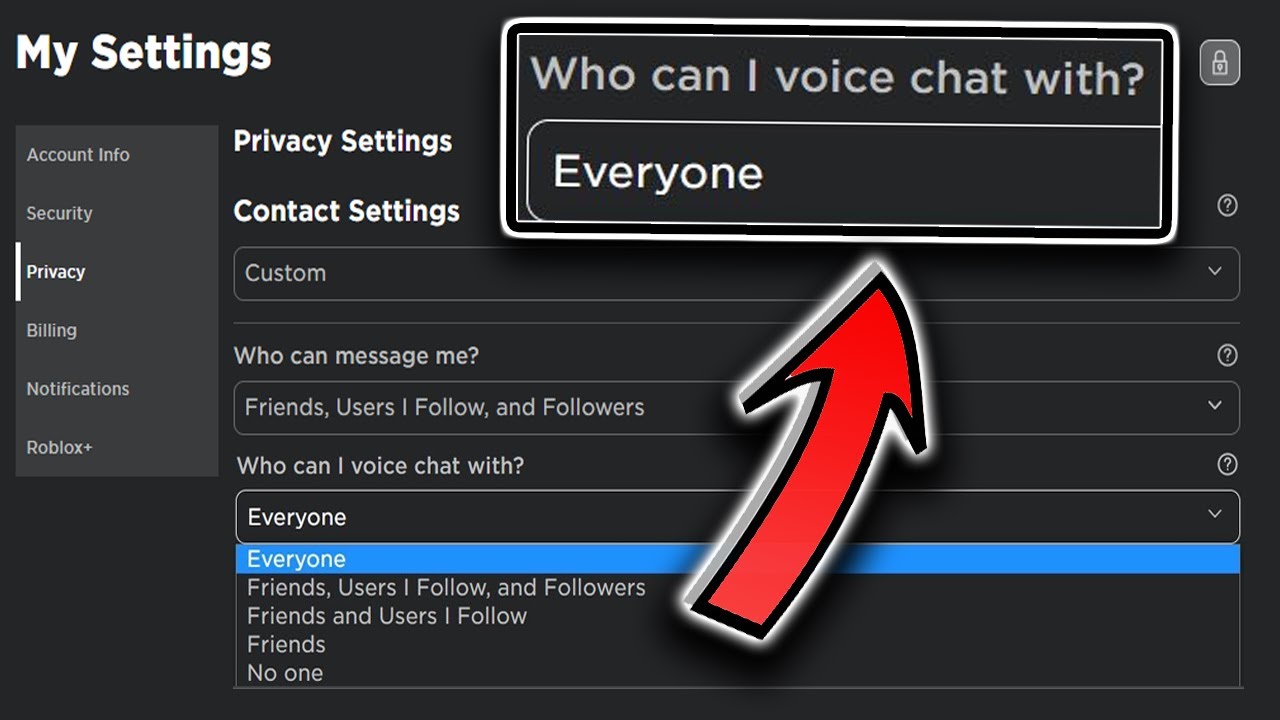
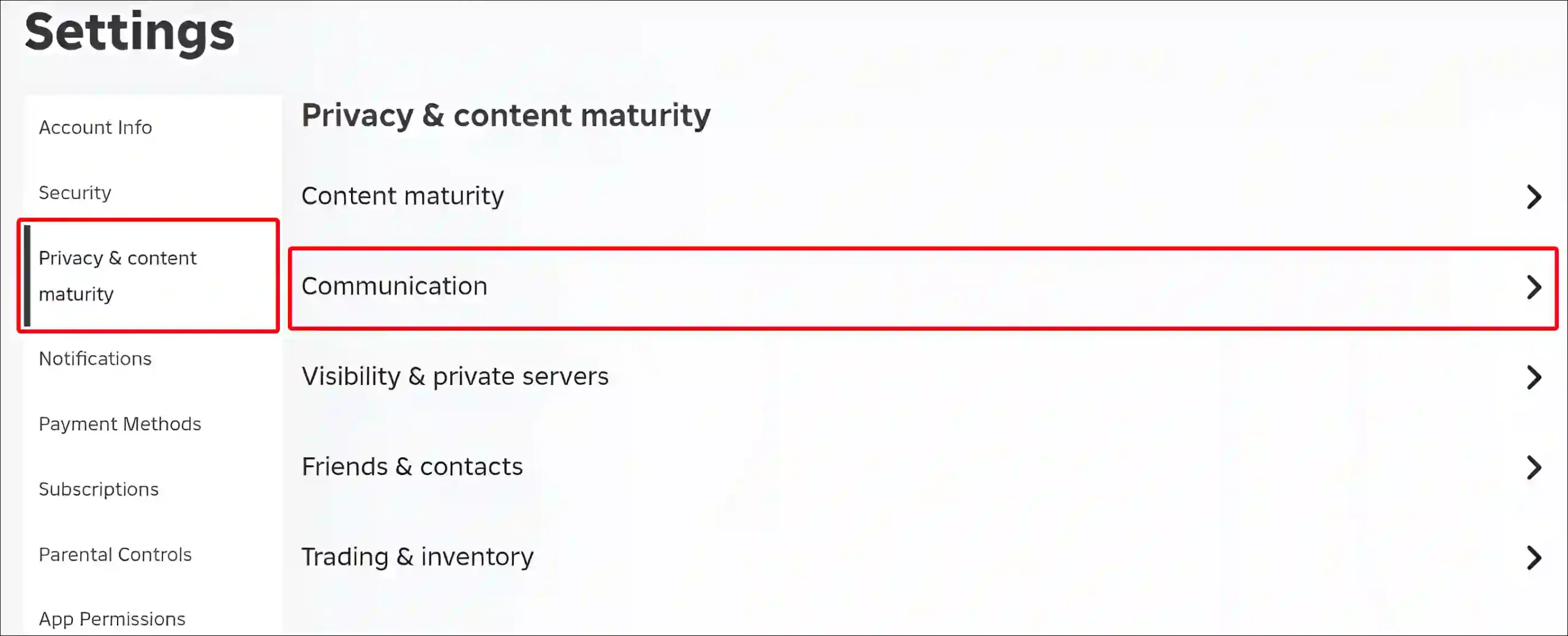
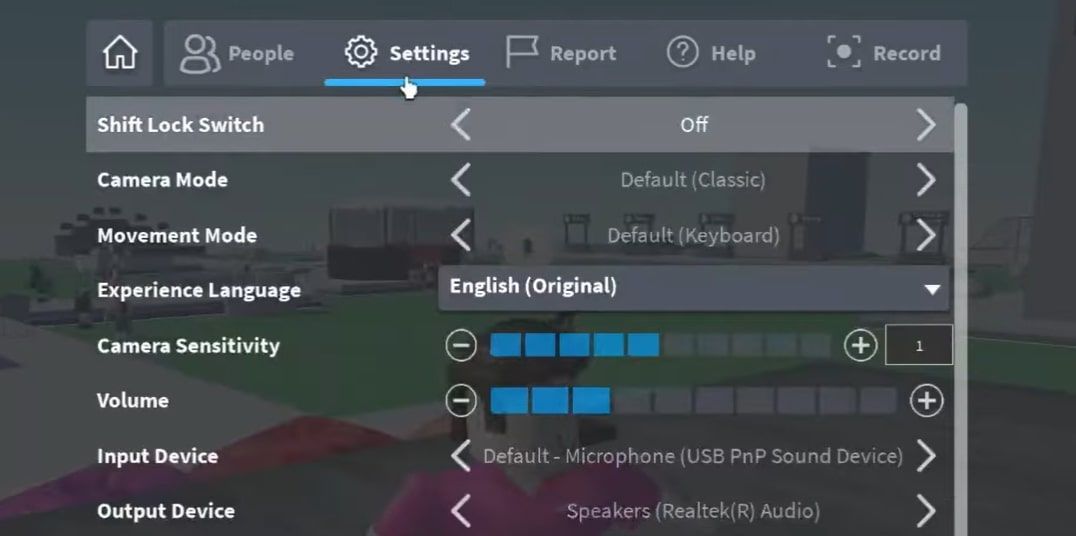
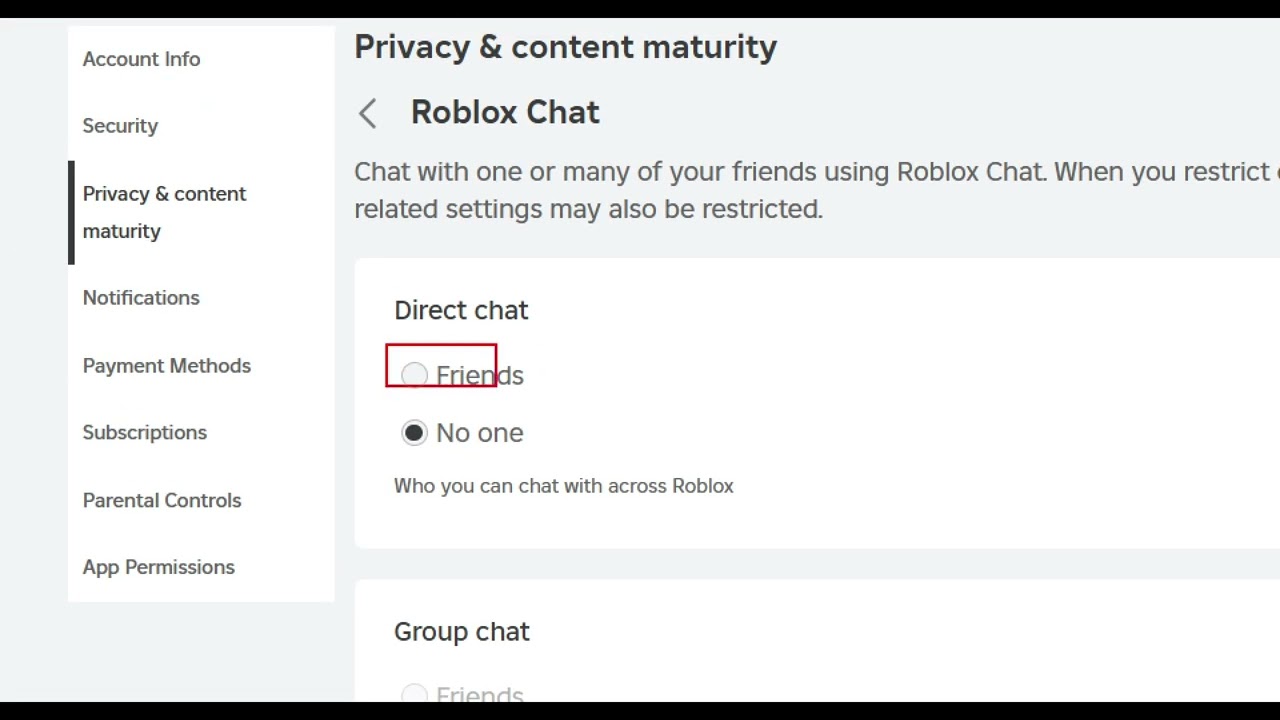
To find your Roblox chat settings for enhanced privacy, first log into your Roblox account on any device. Click the gear icon (Settings) usually found in the top right corner or via the 'More' menu on mobile. Then, navigate to the 'Privacy' tab. Here, you'll find options to control who can chat with you in-app, who can message you, and who can send you friend requests. Setting these to 'Friends' or 'No one' is crucial for busy adult gamers looking to minimize unsolicited interactions and safeguard their personal space, ensuring your gaming time remains focused on fun and relaxation, rather than managing unwanted contact.
What are the different chat filter levels in Roblox and how do they work?
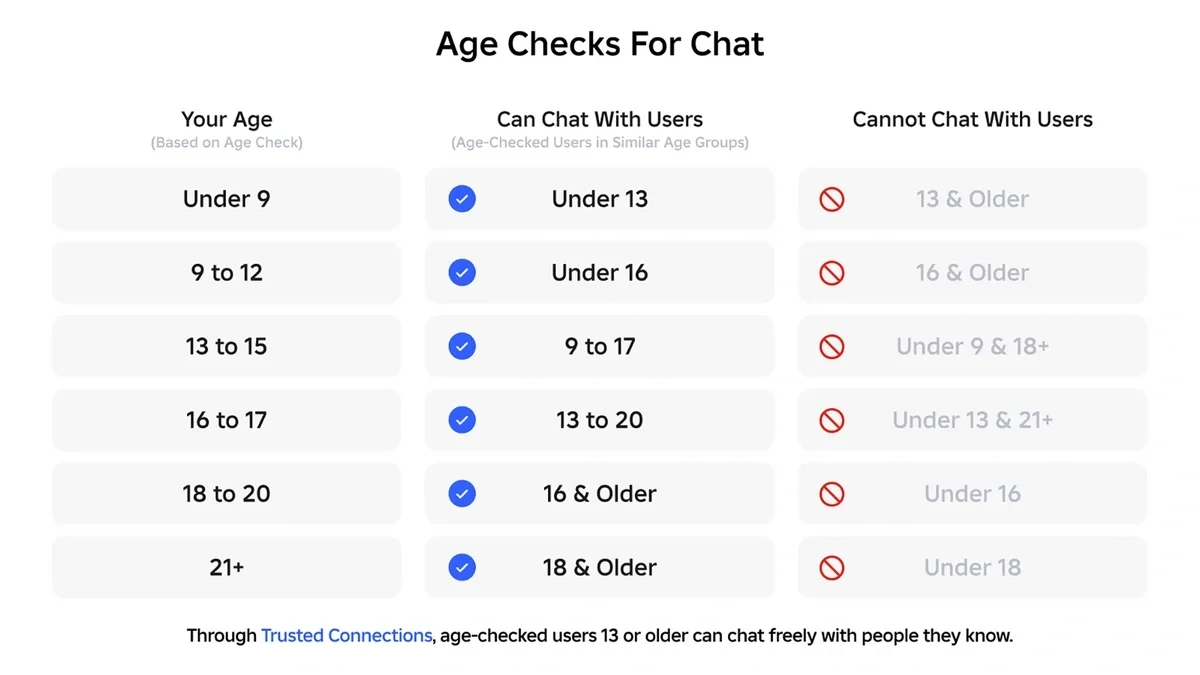
Roblox's chat filtering operates primarily based on the age associated with your account. For users under 13, a highly restrictive filter known as 'Safe Chat' is applied, limiting communication to an approved list of words and phrases to prevent exposure to inappropriate content and personal data. For users aged 13 and older, the filter is less stringent but still actively blocks profanity, personally identifiable information, and external links. You cannot manually adjust the filter's strictness beyond ensuring your account's age is accurately set. This system helps maintain a safe environment for all players, from kids exploring virtual worlds to adults unwinding after a long day.
Can I completely turn off chat in Roblox and still play games?
While there isn't a single 'off' switch for all chat, you can effectively disable most communication interactions in Roblox and still enjoy playing games. By accessing your 'Privacy' settings (gear icon > Privacy), you can set 'Who can chat with me in-app?', 'Who can message me?', and 'Who can invite me to private servers?' all to 'No one'. For accounts under 13 managed by parents, enabling 'Account Restrictions' provides the most comprehensive way to limit or turn off chat. These adjustments prevent others from initiating conversations with you, allowing you to immerse yourself in gameplay without social distractions, perfect for those moments when you just want to relax and play.
How can I manage who can chat with me on Roblox?
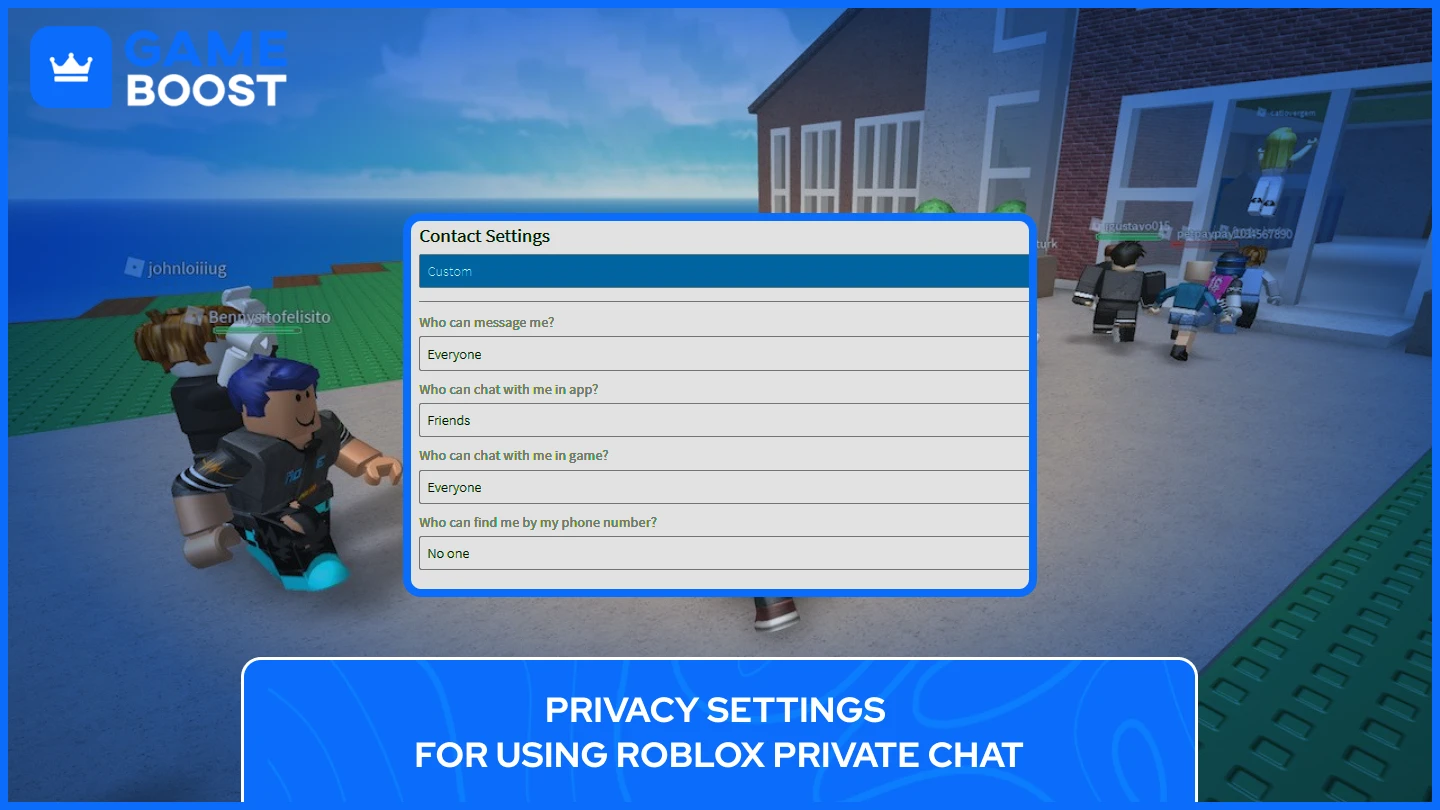
Managing who can chat with you on Roblox is done through your account's 'Privacy' settings. Once logged in, go to Settings (gear icon) and select 'Privacy'. You'll see options like 'Who can chat with me in-app?', 'Who can message me?', and 'Who can invite me to private servers?'. For each, you can select 'Everyone', 'Friends', or 'No one'. To maintain a curated social experience, especially for busy adults, setting these to 'Friends' or 'No one' is recommended. This allows you to control your social circle, ensuring that only trusted individuals can communicate with you, thus optimizing your precious gaming time for positive interactions.
What steps should I take if I encounter inappropriate chat in Roblox?
If you encounter inappropriate chat in Roblox, it's crucial to take immediate action to maintain a safe and positive environment. First, use the 'Block User' feature by clicking on the player's username or avatar and selecting 'Block User' to prevent further communication from them. Second, and most importantly, use the 'Report Abuse' tool, typically located next to a player's name or within the in-game menu. Select the appropriate reason for the report (e.g., 'Inappropriate Chat') and provide specific details. Roblox's moderation team reviews these reports promptly to take action against violators, reinforcing community standards for its millions of US gamers.
Are there specific Roblox chat settings for parents to protect younger players?
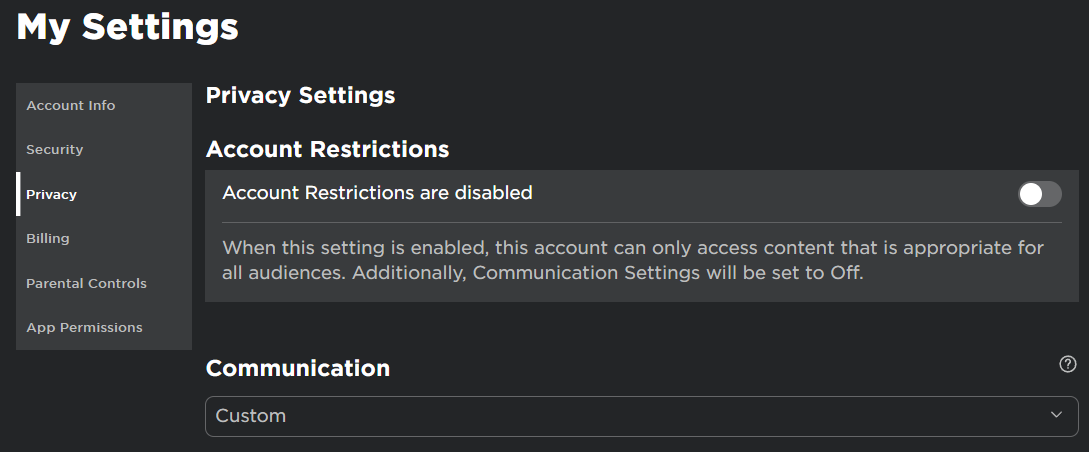
Yes, Roblox offers specific and robust chat settings for parents to protect younger players. The primary tool is 'Account Restrictions', found in the account's privacy settings. When enabled, this feature severely limits or disables a child's ability to chat with others, send friend requests, and even play unapproved games. Additionally, parents can monitor chat history through the 'My Feed' or 'Chat & Party' sections on the Roblox website. These controls empower parents, many of whom are gamers themselves, to create a safe online environment for their children, allowing them to balance family responsibilities with peace of mind regarding their kids' digital interactions.
How do Roblox chat settings impact the social experience for adult gamers?
Roblox chat settings significantly impact the social experience for adult gamers by offering control over engagement and reducing distractions. For adults who game to unwind, socialize with friends, or build skills, customizing 'Who can chat with me' to 'Friends' or 'No one' filters out unsolicited messages, harassment, or spam, preserving their valuable limited gaming time. This allows for focused social interaction with known peers, fostering stronger connections within games or private servers. Effectively managed chat settings ensure that the platform remains a source of relaxation and fun, preventing unwanted interactions from detracting from the positive aspects of social gaming, which is vital for busy US gamers seeking digital escapism.
For many US gamers, balancing a demanding job, family life, and personal commitments leaves limited time for relaxation and fun. When that precious free time is spent gaming, especially on platforms like Roblox where social interaction is key, the last thing anyone wants is to deal with disruptive or inappropriate communication. Roblox is a massive hub for creative expression and social play, with a significant portion of its audience consisting of adult players who grew up with gaming and now integrate it into their busy schedules. Understanding and mastering your Roblox chat settings is not just about safety; it's about optimizing your valuable gaming experience, fostering positive connections, and ensuring your digital playground remains a source of enjoyment, not frustration.
You are part of a vast gaming community, where studies show that approximately 87 percent of US gamers engage regularly, many spending 10 or more hours weekly across various platforms. A significant trend this month highlights the growing importance of social gaming and user-generated content, with Roblox standing at the forefront. This guide is crafted specifically for you – the gamer who values control, privacy, and an efficient approach to online interactions. We'll cut through the jargon and provide clear, actionable steps to tailor your Roblox chat settings, helping you balance your virtual social life with your real-world responsibilities. Let's dive in and unlock a safer, more enjoyable Roblox communication experience.
What are Roblox Chat Settings and Why Are They Important for Gamers?
Roblox chat settings are the customizable options within your account that allow you to control how you communicate with other players in the game, and how they can communicate with you. These settings cover aspects like who can message you, who can chat with you in-game, the level of chat filtering applied to messages, and even the ability to block or report users. For today's busy US gamers, these settings are incredibly important because they directly impact your safety, privacy, and overall enjoyment on the platform. With the increasing prevalence of online interactions, managing these controls efficiently prevents harassment, exposure to inappropriate content, and protects personal information, ensuring your gaming time remains stress-free and fun.
How Do I Access My Roblox Chat Settings?
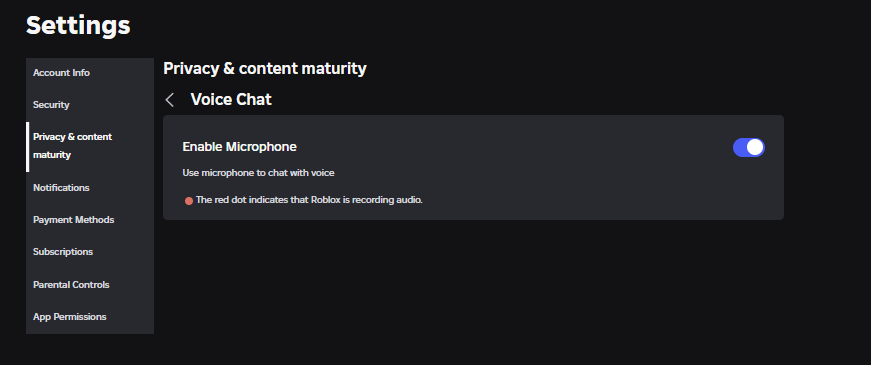
Accessing your Roblox chat settings is a straightforward process, whether you're on a PC, mobile device, or console. First, you need to log into your Roblox account. Once logged in, look for the gear icon, which typically represents 'Settings'. On a computer, this is usually located in the top right corner of the screen. For mobile users, you might need to tap the three dots or 'More' icon to reveal the settings menu. Clicking or tapping the settings icon will open a new menu. From there, navigate to the 'Privacy' section. This is where the majority of your communication and chat-related options reside. Roblox's interface is designed for intuitive navigation, making it easy for even time-pressed gamers to adjust their preferences quickly.
Understanding Roblox's Safety and Privacy Chat Options
Roblox offers a robust set of safety and privacy chat options designed to empower users with control over their online interactions. Key options include 'Who can chat with me in-app?', 'Who can message me?', 'Who can invite me to private servers?', and 'Who can make me a friend?'. Each of these can be set to 'Everyone', 'Friends', or 'No one'. For busy adults, 'Friends' or 'No one' are often preferred choices to minimize unsolicited contact and focus on interactions with known individuals. Roblox also employs an advanced chat filtering system that automatically blocks inappropriate language and personal information, a critical feature given the platform's diverse age range. This layered approach ensures that communication, while social, adheres to strict safety guidelines.
How Can I Customize My Chat Filter Level on Roblox?
Roblox's chat filter is an essential tool for maintaining a safe environment, and it adjusts based on the age associated with the account. For users under 13, chat is heavily filtered, limiting communication to a whitelist of safe words and phrases. For users aged 13 and older, the filter allows for more extensive communication while still blocking inappropriate language, personal information, and links outside of Roblox. You cannot manually adjust the strictness of this filter beyond your age setting. If your account's age is incorrect, you may need to contact Roblox support with proof of age to update it, which will then automatically adjust the filter level. This system protects all players, particularly children, without burdening adult gamers with constant moderation.
What Parental Controls are Available for Roblox Chat?
Roblox provides comprehensive parental controls through the Account Restrictions feature, designed to give guardians peace of mind. By enabling Account Restrictions in the privacy settings, parents can limit their child's ability to chat with others, friend requests, and even what games they can play. This feature essentially locks down communication to an extremely safe mode, typically limiting chat to pre-approved phrases or disabling it entirely in many contexts. Parents can also monitor their child's chat history through the 'My Feed' or 'Chat & Party' sections on the Roblox website. These tools are invaluable for parents, many of whom are gamers themselves, balancing work and family, and looking to ensure their kids have a secure online experience without constant supervision.
How to Block or Report Players in Roblox Chat?
If you encounter a player who is being disruptive, inappropriate, or harassing in Roblox chat, you have powerful tools to manage the situation: blocking and reporting. To block a player, simply click on their username in the game or their profile, and then select the 'Block User' option. Blocking prevents them from sending you messages or chatting with you in-game. To report a player, locate the report abuse button (often found next to their username or in the menu when you click on their profile). Select the reason for the report (e.g., 'Inappropriate Chat'), provide any relevant details, and submit. Roblox's moderation team reviews reports seriously, upholding community standards and helping maintain a positive environment for its 87% of US gamers who play regularly.
Can I Turn Off Chat Entirely in Roblox?
Yes, you can effectively turn off chat entirely in Roblox, although the method varies slightly. The most direct way for individual users to minimize unwanted chat is by setting all communication options in the 'Privacy' settings to 'No one'. This includes 'Who can chat with me in-app?', 'Who can message me?', and 'Who can invite me to private servers?'. While this won't remove the chat window, it will prevent other players from initiating conversations with you. For parents managing a child's account, enabling 'Account Restrictions' is the most comprehensive way to disable or severely limit chat functionality across the platform, providing maximum protection for younger players. This allows adult gamers to customize their interaction level to suit their relaxation needs without constant distractions.
Are There Any Advanced Tips for Managing Roblox Chat for Adults?
For adult gamers balancing life and play, advanced Roblox chat management is about efficiency and control. One tip is to regularly review your privacy settings, especially after Roblox updates, as new options might emerge. Another is to leverage the 'Friends' only setting for all communication to create a curated social circle. Consider joining private Discord servers or groups for your favorite Roblox games; this allows for more in-depth, voice-based communication with trusted players, moving beyond the platform's text chat limitations. This month, social gaming trends show a significant rise in cross-platform communication, highlighting the benefit of using external apps for highly specific group interactions. This approach enhances social play while minimizing public chat noise, perfect for optimizing limited gaming time.
How Does Roblox Chat Impact Social Gaming for Busy Adults?
For busy adult gamers, Roblox chat profoundly impacts the social gaming experience. On one hand, it's a primary avenue for connection, teamwork, and shared experiences in popular games like Adopt Me! or Royale High, fulfilling the desire for social interaction that many US gamers seek. On the other hand, unmanaged chat can be a source of frustration, leading to exposure to inappropriate content, harassment, or time-wasting arguments, pulling away from valuable relaxation. By strategically utilizing Roblox chat settings, adults can filter out the noise, engage only with chosen friends, and focus on the positive aspects of social play. This control is vital for those balancing family and work, ensuring their gaming escapism remains just that – an escape, not another source of stress, fostering skill-building and fun.
Troubleshooting Common Roblox Chat Issues
Encountering chat issues can be frustrating, especially when your gaming time is limited. If your chat isn't working, first, check your internet connection; a stable connection is crucial. Next, verify your Roblox privacy settings to ensure 'Who can chat with me in-app?' isn't set to 'No one'. If you're a parent, confirm 'Account Restrictions' isn't enabled on your child's account if they should have chat access. Clear your Roblox cache and restart the application or device. Sometimes, a simple restart resolves temporary glitches. If filtering seems too strict or too lenient, double-check the age on your Roblox account. For persistent problems, visiting the Roblox Support page or their community forums often provides solutions, as many issues are shared by other dedicated players.
FAQ Section
Why is my Roblox chat filtered so much?
Your Roblox chat is heavily filtered primarily due to the age registered on your account. Accounts for users under 13 have extremely strict filters that only allow a pre-approved whitelist of words and phrases to ensure maximum safety. For users aged 13 and older, the filter is less restrictive but still blocks inappropriate content, personal information, and external links to maintain a secure environment for all players on the platform.
Can friends see my private chat on Roblox?
No, your private chat messages on Roblox are only visible to you and the specific friend or friends you are chatting with. Roblox implements privacy measures to ensure that one-on-one or group private messages remain confidential between the participants. Other players, even mutual friends not in the specific conversation, cannot view your private chat history or ongoing discussions.
What happens if I report someone for chat abuse?
If you report someone for chat abuse on Roblox, the platform's moderation team will review your report along with the evidence provided, such as chat logs. If they find that the reported player violated Roblox's Community Standards, action will be taken, which could range from warnings to temporary bans or even permanent account termination depending on the severity and history of the offense. Roblox is committed to maintaining a safe environment.
Is Roblox chat safe for all ages?
Roblox chat is designed with safety features appropriate for various ages, but parental guidance is always recommended for younger children. The platform uses age-based chat filtering, with stricter controls for users under 13. While Roblox continuously works to moderate content and interactions, direct supervision or careful configuration of parental controls provides the best defense against potential risks, ensuring a safer experience for all users.
How do I change my chat color or font?
Currently, Roblox does not offer built-in settings to directly change your chat color or font within the game's official interface. The chat appearance is standardized across the platform for consistency and legibility. While some third-party extensions or game-specific scripts might claim to offer these customizations, using them can violate Roblox's Terms of Service and potentially compromise your account's security. It's best to stick to official features for a secure experience.
Will adjusting chat settings affect game performance?
Adjusting your Roblox chat settings, such as who can chat with you or the level of filtering, will generally not affect your game's performance. These settings primarily manage backend communication preferences and data filtering, which have minimal impact on your computer's or mobile device's processing power or network bandwidth during gameplay. Core performance issues are more likely related to your device specifications, internet connection, or the specific game's complexity.
Mastering your Roblox chat settings is a small but powerful step towards reclaiming control of your gaming experience. For the average US gamer, juggling work, family, and personal time, every minute of gaming counts. By understanding and customizing these settings, you ensure that your time on Roblox is spent relaxing, connecting with friends, and building skills, free from unwanted distractions or inappropriate content. It’s about creating a safe, fun, and efficient digital space where you can truly unwind and enjoy. Take charge of your communication and make your Roblox adventure truly yours.
What's your biggest gaming challenge when it comes to online communication? Comment below and share your tips!
Privacy Controls Filtering Options Age Restrictions Reporting Abuse Customization Tips Parental Guidance Enhanced Social Play Experience Safety Features
35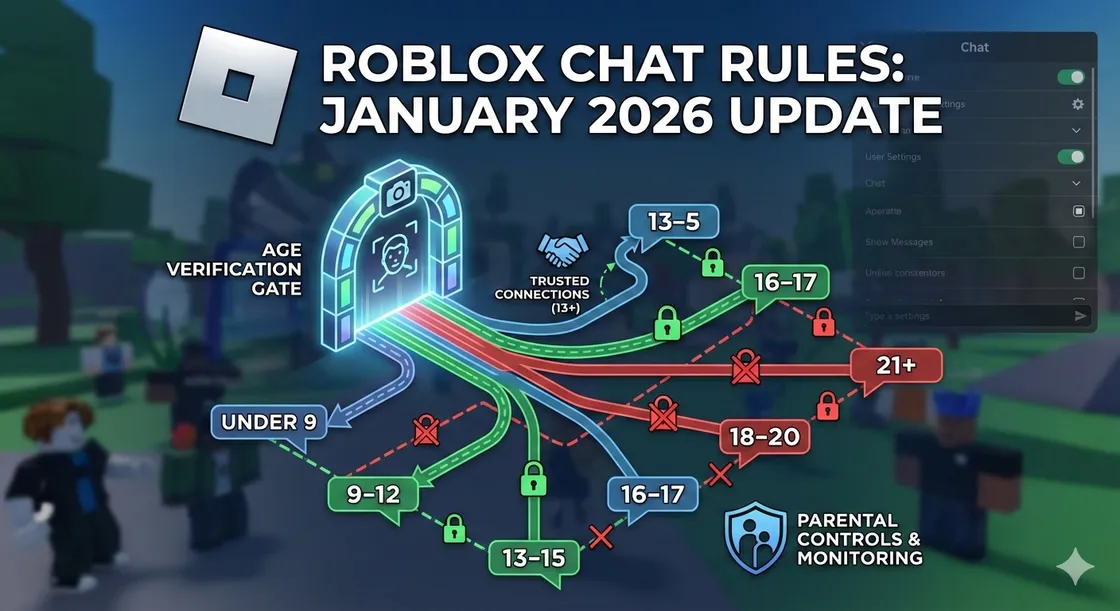
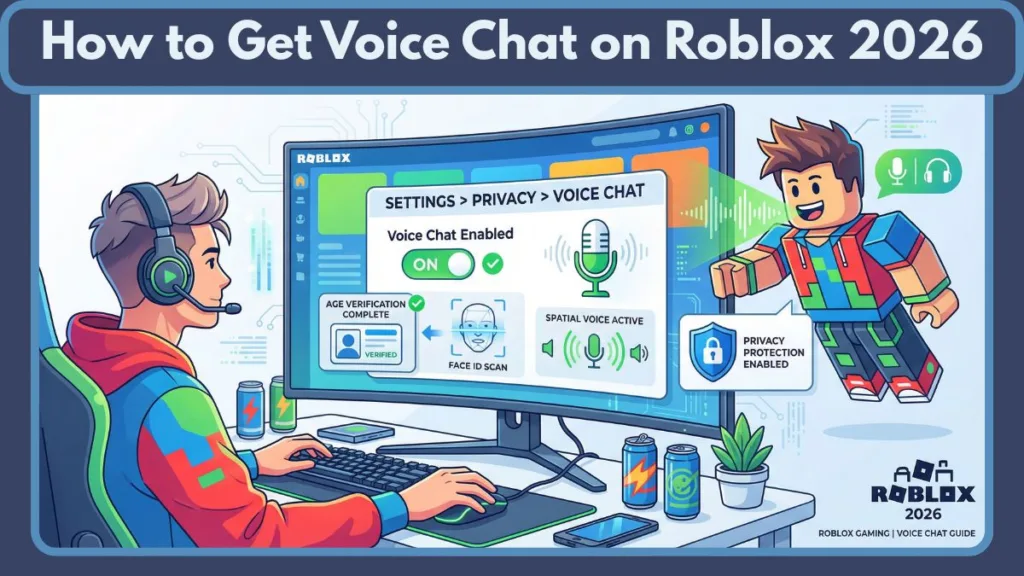


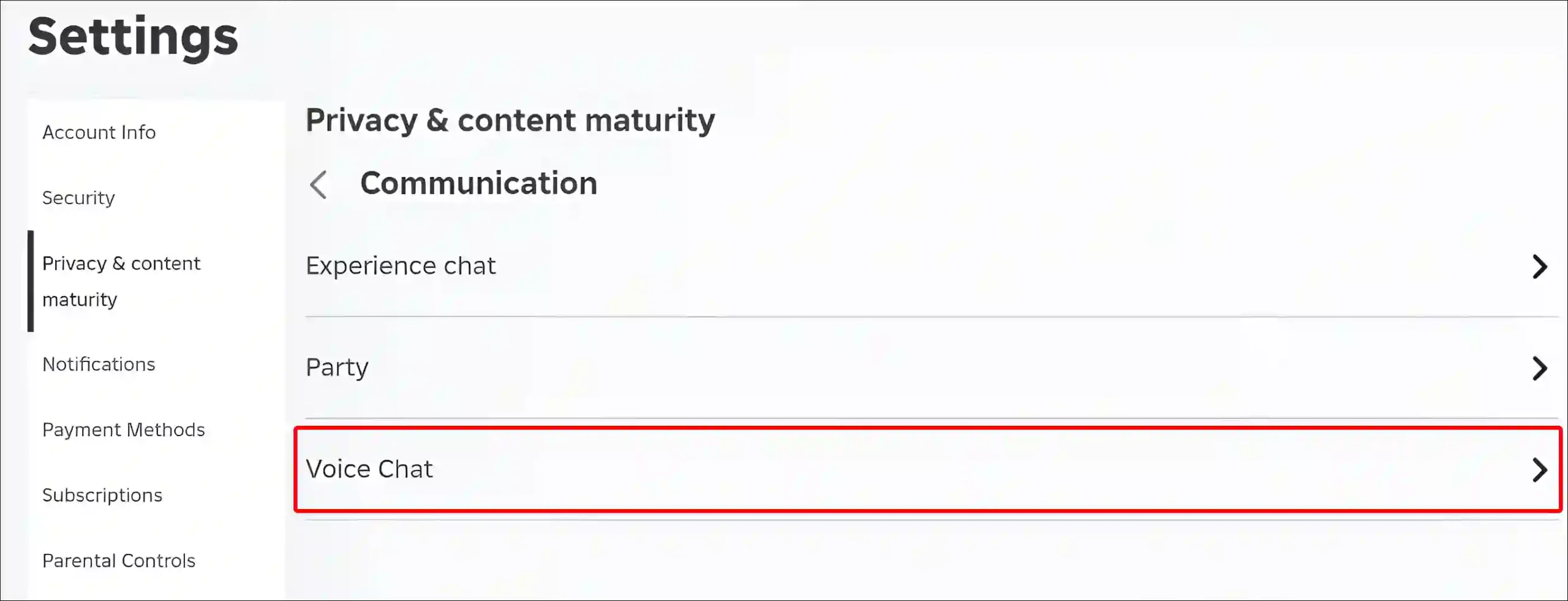
Roblox S New Chat Rules Explained January 2026 Roblox New Chat Rules . How To Get Voice Chat On Roblox 2026 Enable VC Without ID Izoate How To Enable Voice Chat In Roblox 2026. How To Turn Your Roblox Chat Settings On In Roblox YouTube . How To Get Voice Chat In Roblox Step By Step Pictures Rob6 768x399 . How To Turn On Voice Chat In Roblox Mobile And PC Roblox Voice Chat Settings Scaled.webp
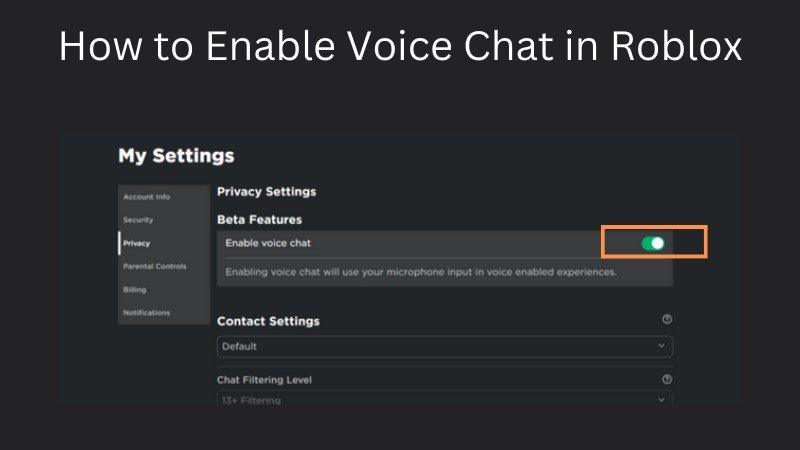

2026 Comment Activer Le Chat Vocal Dans Roblox Guide Rapide Enable Voice Chat Roblox Steps . Roblox Voice Chat Is In SETTINGS YouTube . How To Message On Roblox 2026 A Quick Guide . How To Enable Voice Chat In Roblox RoCodes Gg RoCodes 1656 How To Enable Voice Chat In Roblox . All 5 Ways To Private Chat In Roblox Step By Step Guide 04bb742a 8dd4 4eb6 805a


How To Enable And Use Voice Chat On Roblox Tech How 3 Enable Beta Features. How To Change Chat Settings On Roblox How To Personalize Your . How To Fix Your Chat Settings Prevent You From Sending Messages In . How To Fix Your Chat Settings Prevent You From Sending Messages In . How To Enable Voice Chat In Roblox 2026 Get Voice Chat On Roblox



How To Fix Your Chat Settings Prevent You From Sending Messages In . How To Fix Your Chat Settings Prevent You From Sending Messages In . Roblox Voice Chat Not Working How To Fix It Step By Step Roblox Voice Chat Settings . Is Roblox Removing Chat In 2026 Answered Gamer Tweak Roblox Chat Age. Roblox Chat Update 2026 Explained Mandatory Age New Roblox Chat Update 2026

/images/2026/01/29/roblox-parental-controls_3.png)
Roblox Voice Chat Setup How To Get It Fast June 2026 How To Get Voice Chat In Roblox 1024x683 . How To Manage Your Child S And Chat Settings Roblox. Is Roblox Removing Chat In 2026 197po.webp. How To Set Up Roblox Parental Controls 2026 All About Cookies Roblox Parental Controls 3 . How To Manage Your Child S And Chat Settings Roblox


How To Message On Roblox 2026 A Quick Guide Private Chat In Roblox Step 11 . How To Fix Your Chat Settings Prevent You From Sending Messages In . HOW To ENABLE VOICE CHAT On ROBLOX In 2026 How To Get Voice Chat Img. How To Manage Your Child S And Chat Settings Roblox. Roblox Chat 2026 The New Age Based Chat System Explained Roblox Chat Was Eltern Wissen Muessen.BP BcCTF ZXnRaV.webp

How To Turn On Voice Chat In Roblox Mobile And PC Roblox Settings Scaled.webp. Roblox S New Chat Rules Explained January 2026 Image 827 . Roblox How To Fix Your Chat Settings Prevent You From Sending And . How To Fix Roblox Voice Chat Not Working On Windows 11 Turn The Volume Up By Clicking The Plus Icon Next To It . How To Fix Chat Settings In Roblox Why Can T I Chat In Roblox YouTube