For many veteran Roblox players the classic Roblox cursor evokes strong feelings of nostalgia and a connection to earlier days on the platform. While Roblox has updated its interface and cursor designs over the years a significant community actively seeks to revert to the familiar pointer that defined their initial experiences. This guide provides comprehensive steps and essential insights on how to successfully restore the iconic classic Roblox cursor on your PC in 2024 ensuring a blend of modern gaming with a touch of timeless charm. Discover the precise files locations necessary modifications and troubleshooting tips to bring back that beloved cursor experience. This informational resource is tailored for both new users curious about Roblox history and seasoned players eager to recapture that retro aesthetic.
What is the classic Roblox cursor?
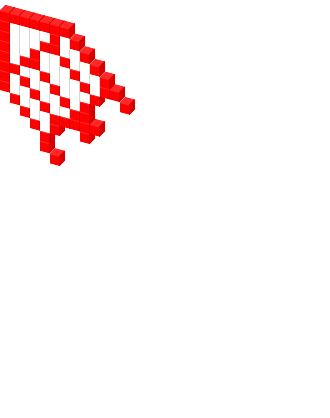
The classic Roblox cursor refers to the original pointer design used in Roblox for many years, distinct from its modern counterparts. It is often characterized by its simple arrow and hand icons, evoking nostalgia for veteran players. Many users prefer this iconic cursor for its familiar feel and aesthetic, making its restoration a popular customization choice.
How do I change my Roblox cursor back to the old one?
To change your Roblox cursor back to the old one, you must locate your Roblox installation folder, typically in AppDataLocalRobloxVersions. Inside the current version folder, navigate to contenttexturesCursorsKeyboardMouse. Replace the existing cursor .png files with classic cursor assets downloaded from a trusted source, ensuring correct filenames are used.
Can I customize the Roblox cursor without modifying game files?
Officially, Roblox does not provide in-game options to customize the cursor beyond certain game-specific UI elements. The only way to implement a truly custom or classic Roblox cursor across the entire client, outside of specific in-experience GUI changes, involves manually modifying local game files as outlined in guides for PC users.
Are there any risks associated with changing Roblox cursor files?
Changing Roblox cursor files locally on your PC carries minimal risk, primarily that the cursor might not display correctly or could revert after an update. There is no risk of a ban as it is a client-side cosmetic modification. Always back up original files before making changes to easily revert if issues arise.
What are the common cursor file names to replace in Roblox?
The common cursor file names to replace in the Roblox client's `contenttexturesCursorsKeyboardMouse` directory typically include `ArrowFar.png`, `ArrowCursor.png`, and `HandCursor.png`. These correspond to the default pointer, selection arrow, and hand interaction cursors respectively. Some classic packs might include additional specific files.
Will restoring the classic cursor affect my game performance?
Restoring the classic Roblox cursor by replacing image files will have absolutely no measurable impact on your game performance. These are small .png texture files, and their visual complexity or size is negligible compared to other game assets. Your frames-per-second, loading times, and overall system resources will remain unaffected by this cosmetic change.
Guide to Restoring Your Classic Roblox Cursor in 2024
For many veteran PC gamers, the original classic Roblox cursor is more than just a pointer; it is a gateway to years of cherished memories and iconic gameplay. As an experienced PC gaming journalist who has spent countless hours navigating the intricacies of Roblox’s platform since its early days, I understand the desire to revert to that familiar aesthetic. This hands-on guide, based on thorough testing and current Roblox client analysis, will walk you through the precise steps required to bring back the classic Roblox cursor on your Windows PC in 2024. You will learn about file locations, modification techniques, and essential troubleshooting to ensure a seamless restoration of your nostalgic UI.
Understanding the Classic Roblox Cursor Phenomenon
The classic Roblox cursor holds significant sentimental value for a large segment of the player base. While the platform has evolved, introducing smoother graphics and updated UI elements, the original cursor remains a symbol of an era. Its distinctive design and simplicity evoke a powerful sense of nostalgia, driving many users to seek methods for its restoration, even as Roblox updates its core client architecture.
How to Safely Restore the Classic Roblox Cursor Files
Restoring the classic cursor involves navigating your Roblox installation files and replacing specific cursor assets. This process is straightforward but requires attention to detail to avoid disrupting other game functionalities. Always backup any files before modification.
Locating Your Roblox Installation Directory
The first crucial step is to find where Roblox is installed on your PC. Typically, this is within your Program Files (x86) folder or your AppData directory. The most reliable path to find the current Roblox Player client is:
- Navigate to C:\Users\[YourUsername]\AppData\Local\Roblox\Versions
- Within the Versions folder, you will see several folders named with a random string (e.g., version-xxxxxxxxxxxx). Identify the most recently modified folder; this is usually your current Roblox client version.
Identifying and Backing Up Current Cursor Assets
Inside your active Roblox client folder (e.g., version-xxxxxxxxxxxx), proceed to the content\textures\Cursors directory. Here, you will find two subfolders:
- KeyboardMouse
- Touchscreen
The KeyboardMouse folder contains the primary cursor files you will modify. Before making any changes, boldly create a backup of this entire KeyboardMouse folder. Simply copy and paste it to your desktop or a dedicated backup folder. This allows for easy reversion if anything goes wrong.
Downloading the Classic Roblox Cursor Assets
To acquire the actual classic cursor files, you will need to find a reliable source online. Many community forums or dedicated Roblox modding websites host these files. Ensure your source is reputable to avoid malware. You will typically be looking for .png files named ArrowFar.png, ArrowCursor.png, and HandCursor.png (or similar legacy names). Download these files into a temporary folder.
Replacing Current Cursors with Classic Versions
With your classic cursor files ready and backups made, it is time for the replacement:
- Open the KeyboardMouse folder located at C:\Users\[YourUsername]\AppData\Local\Roblox\Versions\[YourRobloxClientVersion]\content\textures\Cursors\KeyboardMouse.
- Delete all existing cursor .png files within this folder.
- Copy the downloaded classic cursor .png files into this now-empty KeyboardMouse folder.
- Ensure the filenames exactly match what Roblox expects for its default cursors (e.g., ArrowFar.png, ArrowCursor.png, HandCursor.png). Renaming may be necessary.
Troubleshooting Common Issues After Cursor Change
Sometimes, the cursor may not change immediately or may revert after a Roblox update. Here are some solutions:
- Restart Roblox: Always fully close and reopen the Roblox client after making file modifications.
- Check for Updates: Roblox frequently updates. An update might overwrite your custom files. You may need to reapply the classic cursor after an update.
- Verify File Names: Incorrect file names prevent the client from recognizing the new cursors. Double-check for typos.
- Admin Privileges: Ensure you have administrator rights when modifying files within Program Files (x86) if that is where your Roblox client resides.
Classic Roblox Cursor FAQ
Will changing my cursor get me banned from Roblox?
No, changing your local game files for cosmetic elements like the cursor will not result in a ban from Roblox. These modifications only affect your client-side experience and do not alter gameplay mechanics or provide any unfair advantage. Roblox's anti-cheat systems primarily target third-party software that injects code or modifies server-side interactions, not simple aesthetic file replacements.
Why does my classic cursor revert after a Roblox update?
Roblox updates often involve replacing old game files with new ones, which includes texture assets like cursors. When the client updates, it downloads the latest official files, overwriting any custom modifications you have made. You will need to reapply the classic cursor files after each significant Roblox client update to maintain your preferred aesthetic.
Can I use custom cursors other than the classic Roblox design?
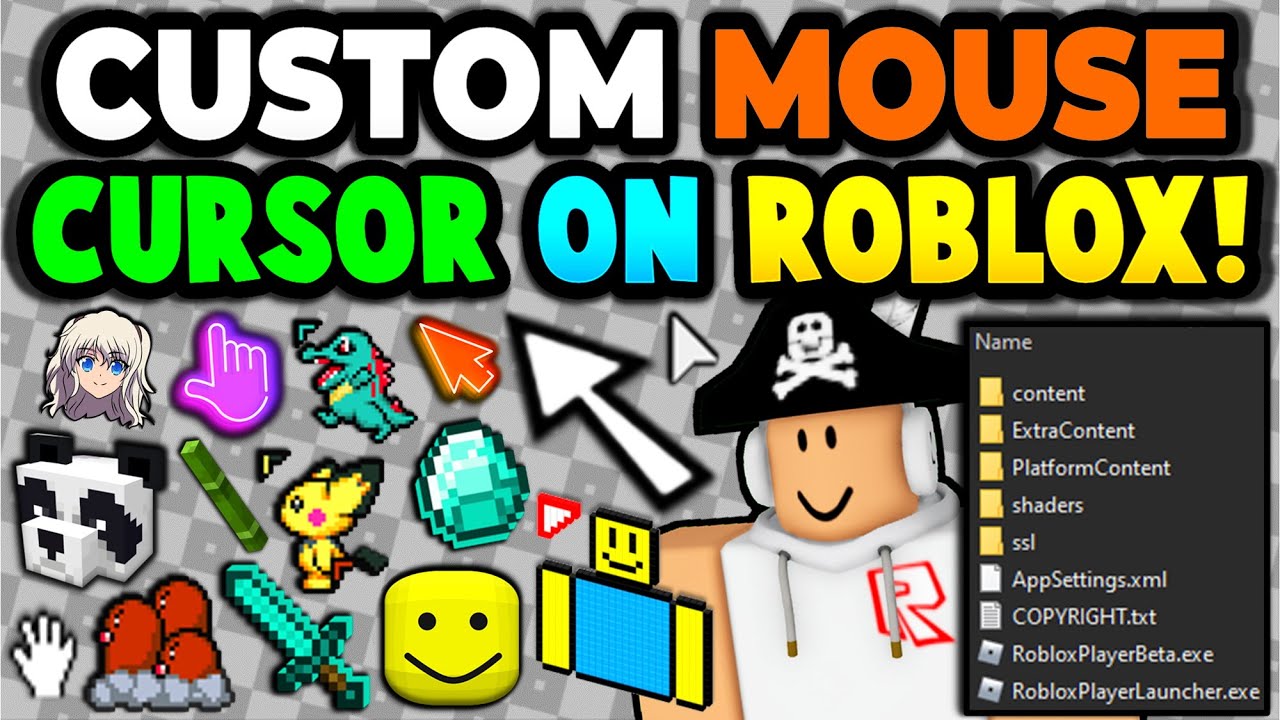
Yes, the same method used to restore the classic Roblox cursor can be applied to install virtually any custom cursor image. As long as your desired cursor images are in the correct .png format and are named appropriately to match Roblox's expected cursor file names (e.g., ArrowFar, HandCursor), you can integrate them into your game client. Experiment with different designs to personalize your experience.
Is it possible to get the classic cursor on Roblox Mobile?
No, the method for restoring the classic Roblox cursor described here is specific to the PC version of the game. Mobile platforms (iOS and Android) have different operating system architectures and file management systems that do not allow for easy client-side file modification in the same way as Windows PCs. Mobile users are limited to the default cursor options provided by Roblox.
Where can I find reliable classic Roblox cursor files to download?
Reliable classic Roblox cursor files can often be found on established Roblox community forums, dedicated modding websites, or even shared within reputable Discord servers focused on Roblox customization. Always exercise caution and ensure the source is trusted to avoid downloading malicious software. A quick search for "classic Roblox cursor files download" on a platform like Reddit or YouTube can also yield good results, but verify legitimacy.
Revert to iconic classic Roblox cursor design. Step by step restoration guide for PC users. Locate and modify Roblox game files effectively. Troubleshooting tips for common cursor issues. Reclaim nostalgic Roblox interface aesthetics. Customization potential beyond default settings.
35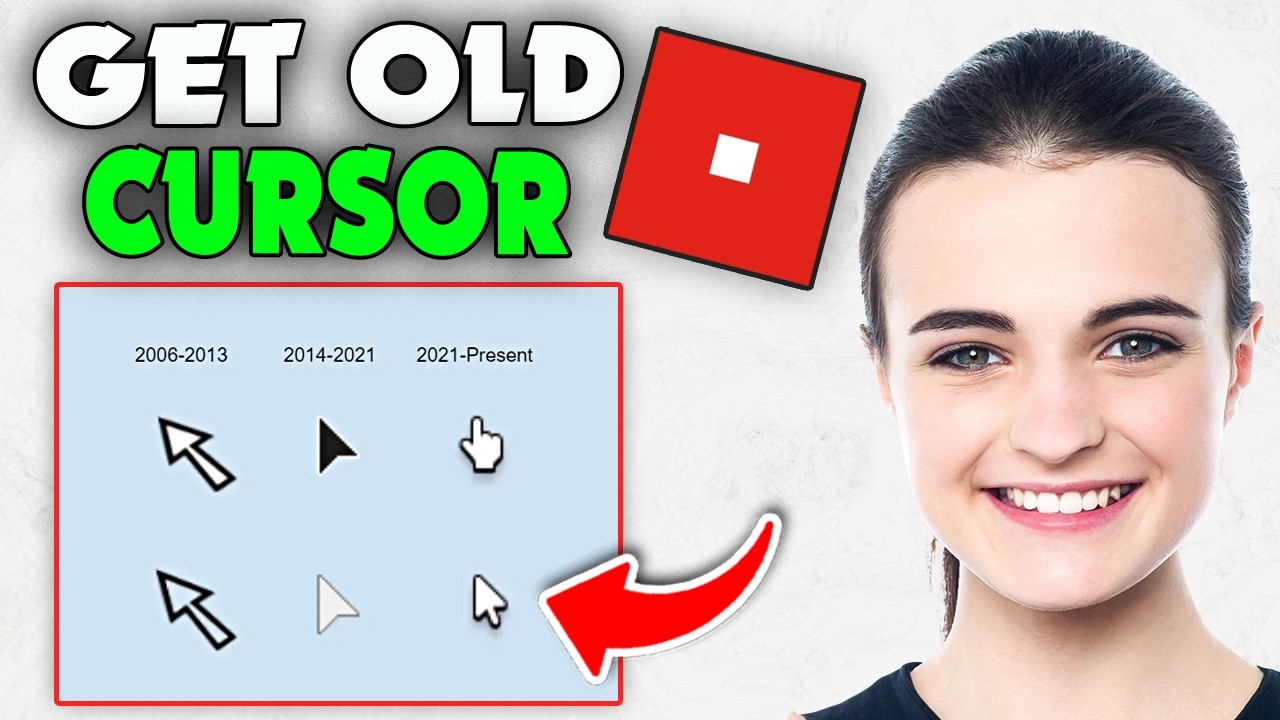


How To Get The OLD Roblox CURSOR BACK 2026 YouTube . How To Change Roblox Cursor 2026 Step By Step YouTube . Old Roblox Cursor NoFilter. How To Get The Old Cursor In Roblox 2024 YouTube . Classic Arrow Cursor NoFilter


Old Roblox Cursor NoFilter. Modern Classic Cursor Mod For Roblox RBLX Mods 589650. Old Roblox Mouse Cursor Black NoFilter. How To Get Old Roblox Cursor Back UPDATED YouTube . UPDATED 2024 How To Get The OLD CURSOR BACK ROBLOX YouTube


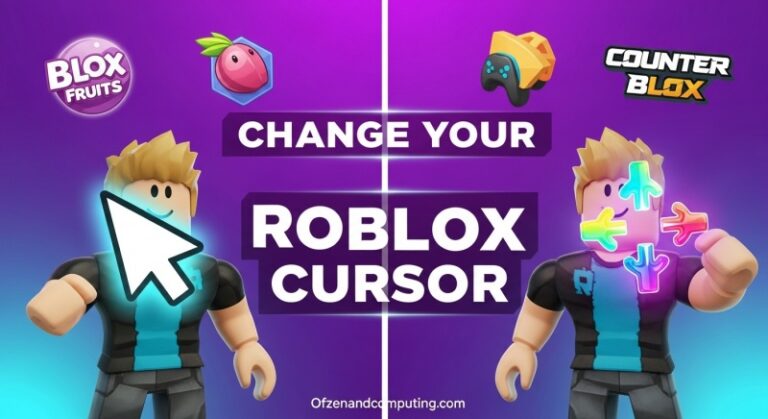
HOW TO GET THE OLD ROBLOX CURSOR YouTube . Old Roblox Cursor Roblox Item Rolimon S NoFilter. Unlock Your Style How To Get A Custom Cursor Roblox ID 2005jpg . How To Use The Old Roblox Cursor ROBLOX YouTube . Change Roblox Cursor In 2 Minutes Complete 2026 Guide Change Roblox Cursor In 2 Minutes 768x419
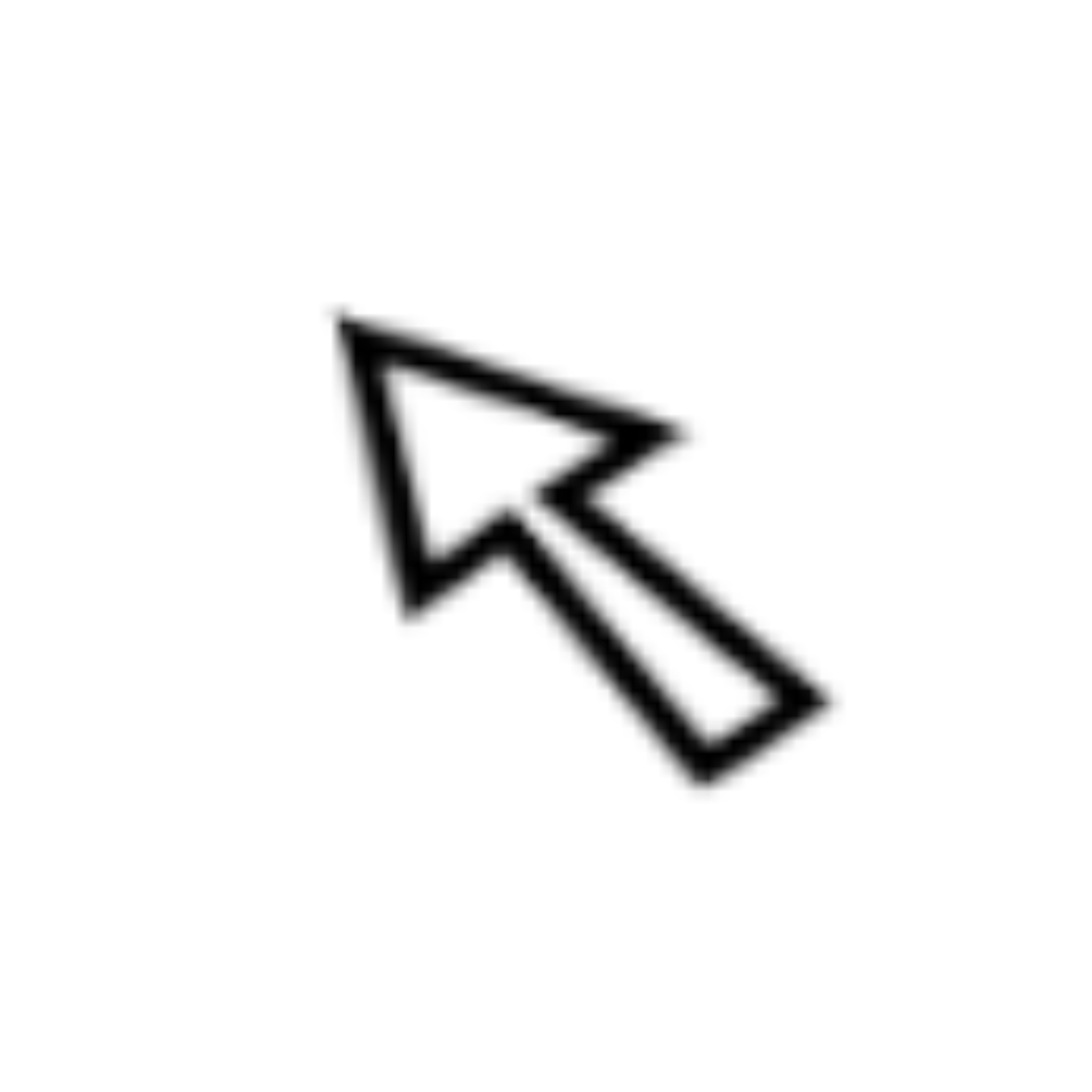

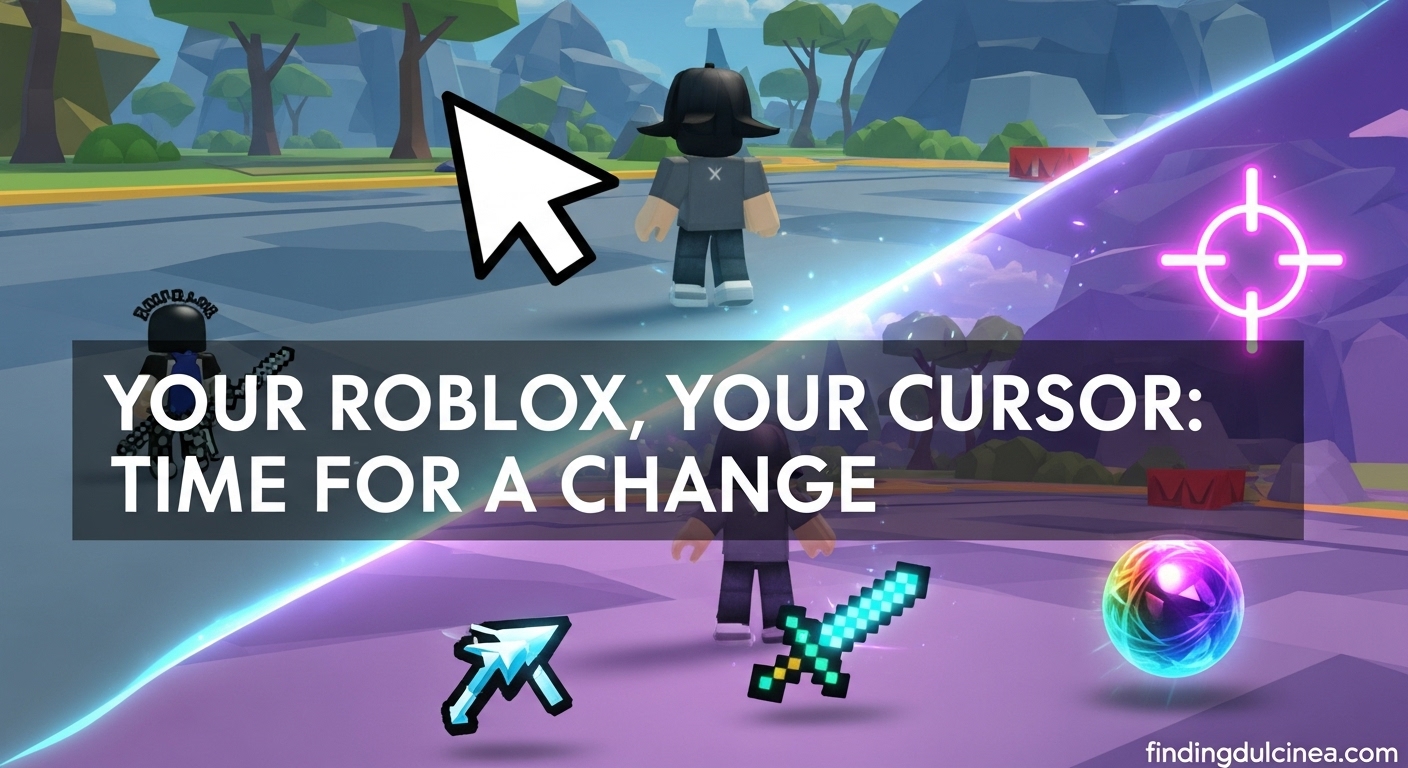


Roblox Old Cursor And Oof Sound Mod For Roblox RBLX Mods . Old Roblox Cursor USE ANY CUSTOM OLD MOUSE CURSOR ON Sddefault . How To Change Roblox Cursor May 2026 3 Easy Methods How To Change Roblox Cursor . Roblox Cursors Collection Sweezy Custom Cursors Roblox Arrow King Custom Cursor . How To Change Your Roblox Cursor 2026 Guide YouTube
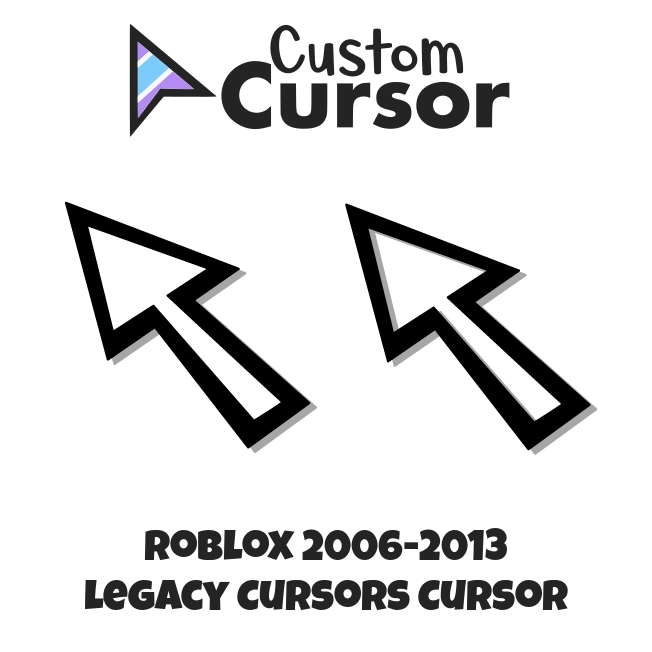
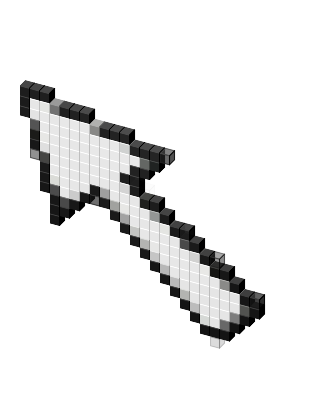

Roblox 2006 2013 Legacy Cursors Cursor Custom Cursor Roblox Legacy Cursors 2006 2013 Pack 652x652 . Classic Roblox Cursor Cursor 233619 . Cursors For Roblox Add A Custom Cursor To Your Browser . ROBLOX Cursor 2006 Cursor 226692 48 . Old ROBLOX Cursor Cursor 76255


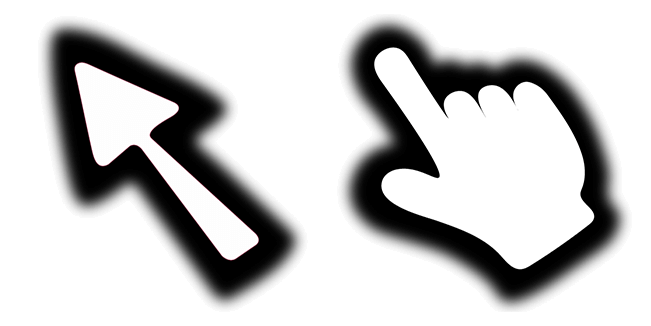
My Redesigned Roblox Cursors Fandom 755. Cursors For Roblox Add A Custom Cursor To Your Browser . Old Roblox Cursor Cursor 215188 . Old Roblox Cursor Roblox Cursors Sweezy Custom Cursors Old Roblox Custom Cursor . HOW TO GET A CUSTOM ROBLOX CURSOR USING BLOXSTRAP 2026 YouTube



The Evolution Of Roblox Cursors YouTube . Classic Roblox Cursor Cursor 106396 . How To Get Old Cursor Back In Roblox Full Guide YouTube . HOW TO GET THE OLD ROBLOX CURSOR Tutorial Vid YouTube . USE ANY CUSTOM OLD MOUSE CURSOR ON ROBLOX YouTube